User
Review, correct or duplicate worklogs
Check your hours, complete the classification and investigate entries that cover the same time.
Before you start
In My Timesheet, select the period containing the entry’s start date. Check the time zone and active filters.
0:25 · English narration with English and Portuguese captions.Download English captions
Application demonstration using fictional data.
Read the English transcript
Open My Timesheet, choose Week, and use the arrows to find the week you want. By day groups entries for the same issue. Open a group to inspect its individual entries.
Switch to By time to see start times and possible overlaps. Check both entries before correcting a duration. Open your entry and choose Edit if your Jira permissions allow it.
Save the change and check the daily total.
Step by step
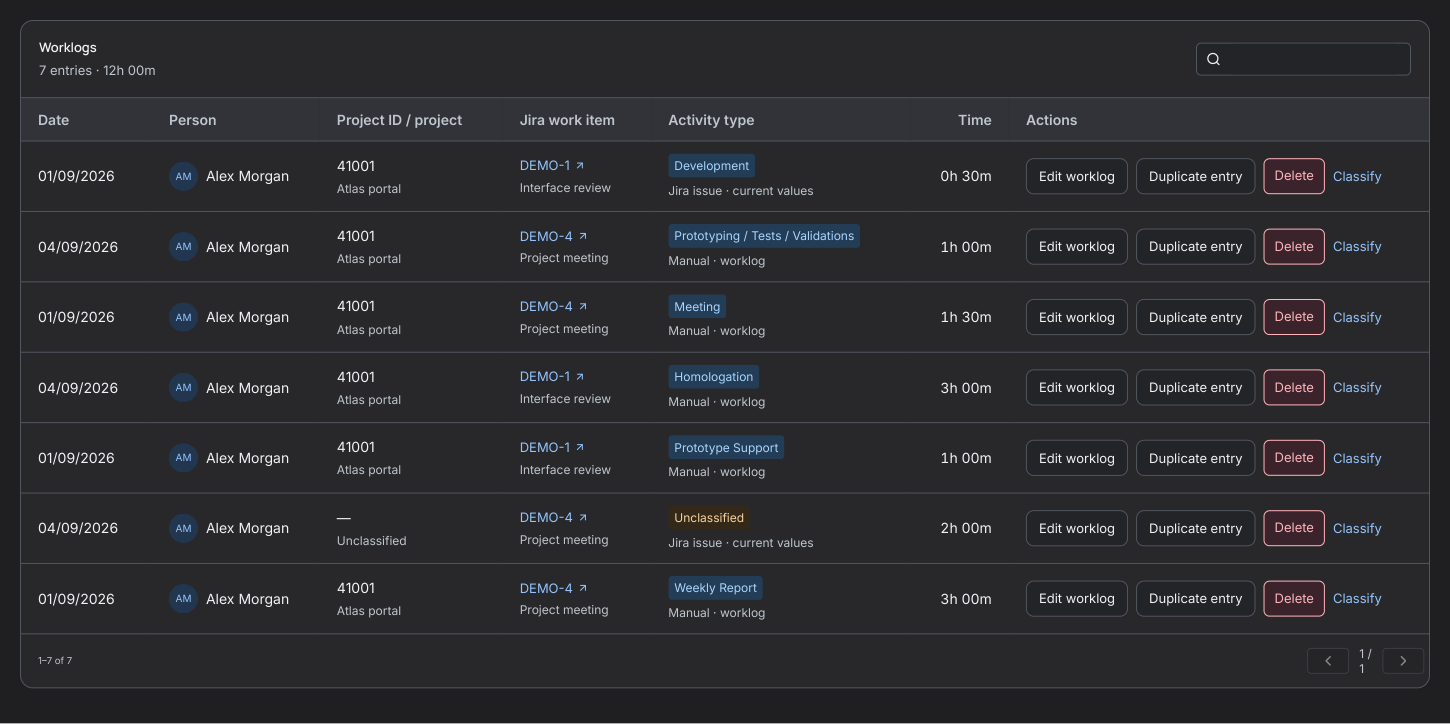
- Open Worklogs. Find the issue and check its date, start, duration, Project ID and, for Miscellaneous work, activity.
- Use Edit in the entry actions to correct its details. To repeat an entry, choose Duplicate, review the date, start time and duration, then save the copy.
- To remove your entry, choose Delete, check the issue and duration, and confirm. This removes the worklog from Jira. Editing and deletion depend on authorship and Jira permissions.
- In Personal summary, open entries awaiting classification to supply a missing Project ID or Miscellaneous activity. The project with the most time is ranked across the selected hours and can appear even when every entry is classified.
- In Possible overlaps, choose Review overlaps to inspect the pairs. Compare their start times and durations before correcting anything. Each overlapping minute counts once in the simultaneous-time total, even if three entries overlap.