Manager · Administrator
Plan team capacity
Allocate hours by person and project, spot overloads and compare the plan with Jira worklogs.
Before you start
Open Analysis → Planning and choose the year and team. Organisation managers and Jira administrators can view the plan. Jira administrators can edit allocations, move hours and set global efficiency.
Application demonstration using fictional data.
Read the English transcript
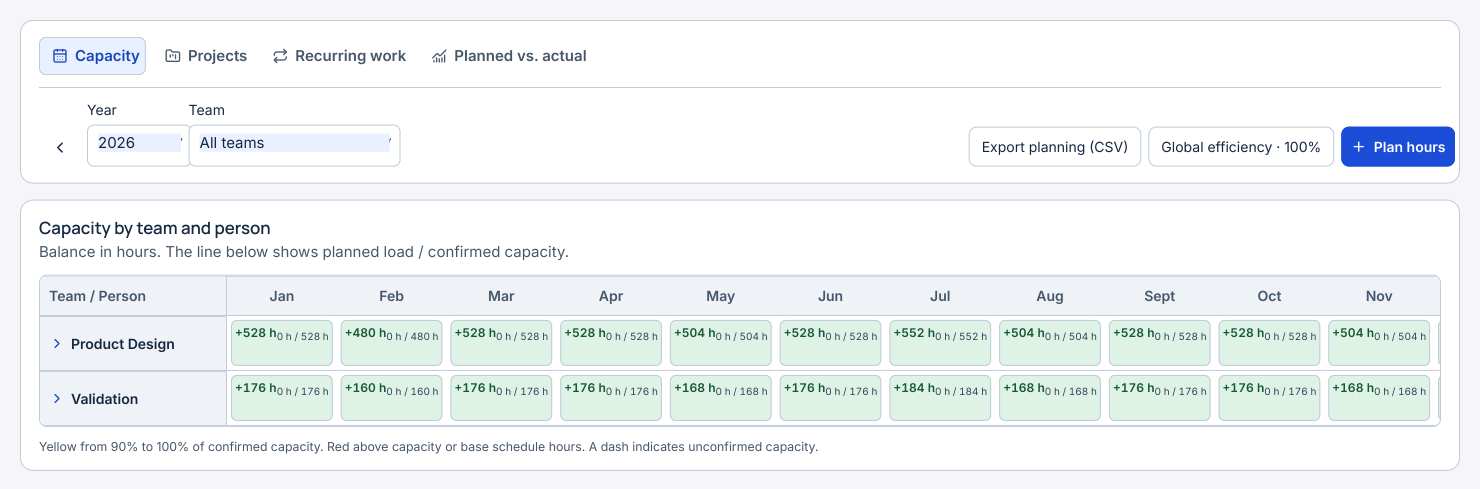
Open Planning and select the year and team. In Capacity, expand a team to compare planned hours with the available hours for each person and month.
Use Projects to assign hours to a person and month. Use Recurring work to reserve time for internal activities. In Planned versus actual, select a month and
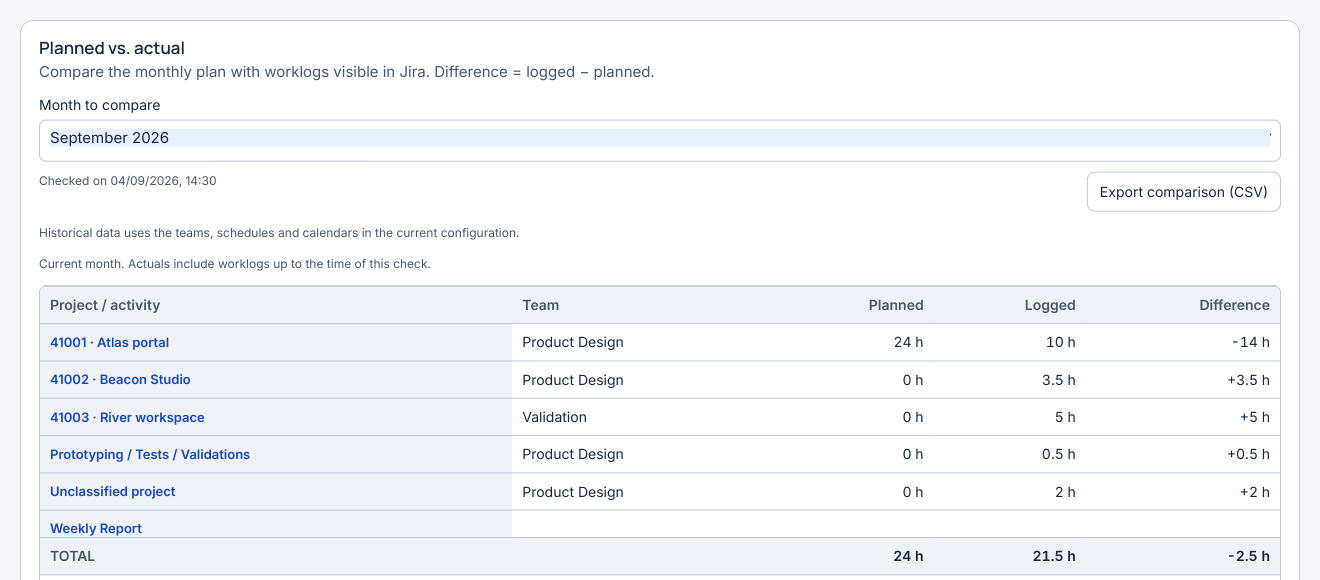
compare what was planned with time logged in Jira.
Step by step
See who has capacity
Choose a year and team at the top. In Capacity, expand a team to see each person's monthly load. Click a cell to open the monthly details and see its allocations.
The balance is confirmed capacity less planned load. Capacity uses the weekly schedule and deducts holidays and absences. A warning appears at 90–100% utilisation. Above 100% is an overload. A dash marks unconfirmed capacity.
For example, 400 planned hours against a base schedule of 160 hours is an overload of 240 hours. A person's colour reflects all their projects and activities that month.
The team row shows how many people are over capacity or have calendars to confirm. Open a month to see their names. Use Export planning (CSV) to download the selected year and team.
Plan by project and person
In Projects, expand a Project / ID to see allocations by person and month. Click a cell to edit a saved allocation or use Plan hours to add one.
If you change the year in the form, wait for the month’s saved hours to load. To repeat an allocation, open it, choose Copy hours to other months and select months. Review existing allocations before choosing to replace them.
- Choose the Project / ID, person and month.
- Enter the estimated hours for the month at 100%. At 80% global efficiency, an estimate of 40 hours uses 50 hours of capacity.
- Review the monthly load and choose Save plan. The allocation belongs to the team configured for that person.
Make room for recurring work
In Recurring work, choose Plan recurring work. Select the internal activity, person and month. Enter the hours in each month when you expect maintenance, support or meetings.
The balance for new projects deducts all allocated time, including recurring work. Internal activities are configured under Miscellaneous.
Preview an hours transfer
Open a saved allocation and choose Move hours. A transfer uses the planned hours with efficiency already applied.
- Select the destination person and month, then enter the hours to move.
- Choose Preview transfer. Check the before and after load and balance at both the source and the destination.
- Choose Save transfer to apply both changes. Cancel keeps the current plan.
Compare the plan with logged time
The team logs time with the timer or enters it manually in ScopeTime. The entries become native Jira worklogs.
In Planned vs. actual, select the Month to compare and choose Compare with Jira. Review planned hours, logged hours and the difference by project or activity and team. The difference is logged hours minus planned hours. For example, 56 logged hours against 50 planned hours gives +6 hours.
For the current month, the view shows the worklogs visible at the time of the comparison. Jira permissions determine which worklogs are included.
Open the project or activity row to see the variance by person and access Jira worklogs. Check the query timestamp and use Export comparison (CSV) to download the values. Historical analysis uses the current teams, schedules and calendars.