User · Manager
Review a person’s hours and leave
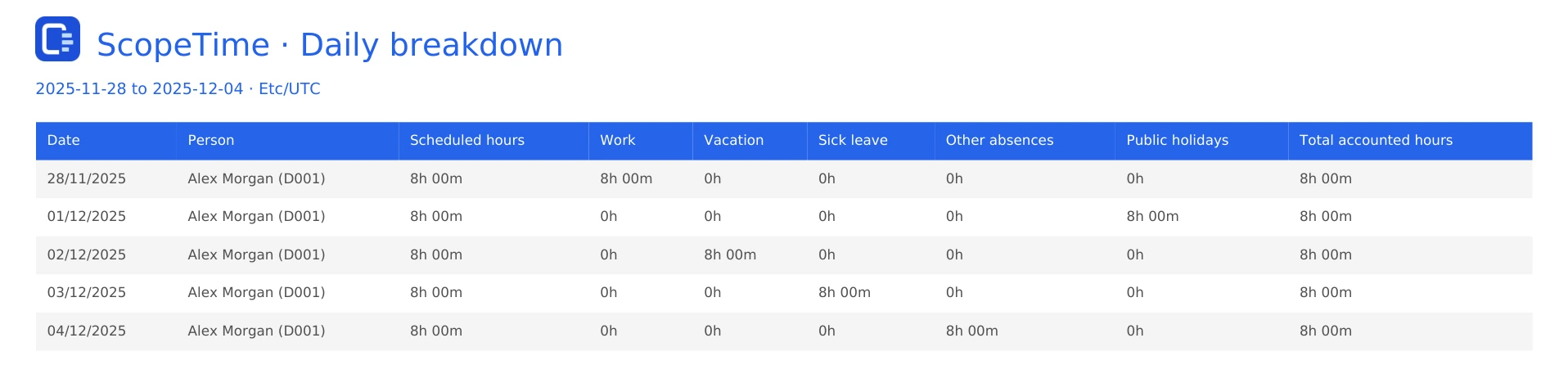
Separate work, vacation, sick leave, other absences and holidays, then check the accounted total.
Before you start
Open your own analysis in My Timesheet. Access to other people depends on your role and the teams you lead.
Step by step
- On the Team timesheet, select a name to start with the displayed month. In Reports → Person analysis, choose View to select an authorised person and date range.
- Apply the dates and read the totals and daily detail. Work comes from visible Jira worklogs. Other categories use the person’s schedule and calendar.
- For example, 32 hours of work and eight hours of vacation give 40 accounted hours. The eight hours appear under Vacation. Project effort totals use the working hours.
- Choose PDF or Excel inside the analysis to export the selected person. The PDF and Excel shortcuts on the report card export your own account. The report includes the employee number beside the name when it has been set.