Manager · Administrator
Set up the first team and project
Prepare a participant, a Project ID and two test issues to confirm where Jira saves the work.
Before you start
A Jira administrator manages access. An authorised organisation manager can prepare the catalogue, schedules and destinations. The example codes are fictional.
Step by step
- In Jira, open Apps → ScopeTime → Organization. Under Access, the administrator checks that the person can use the app. If the app uses a restricted list, add their account with the appropriate role and save.
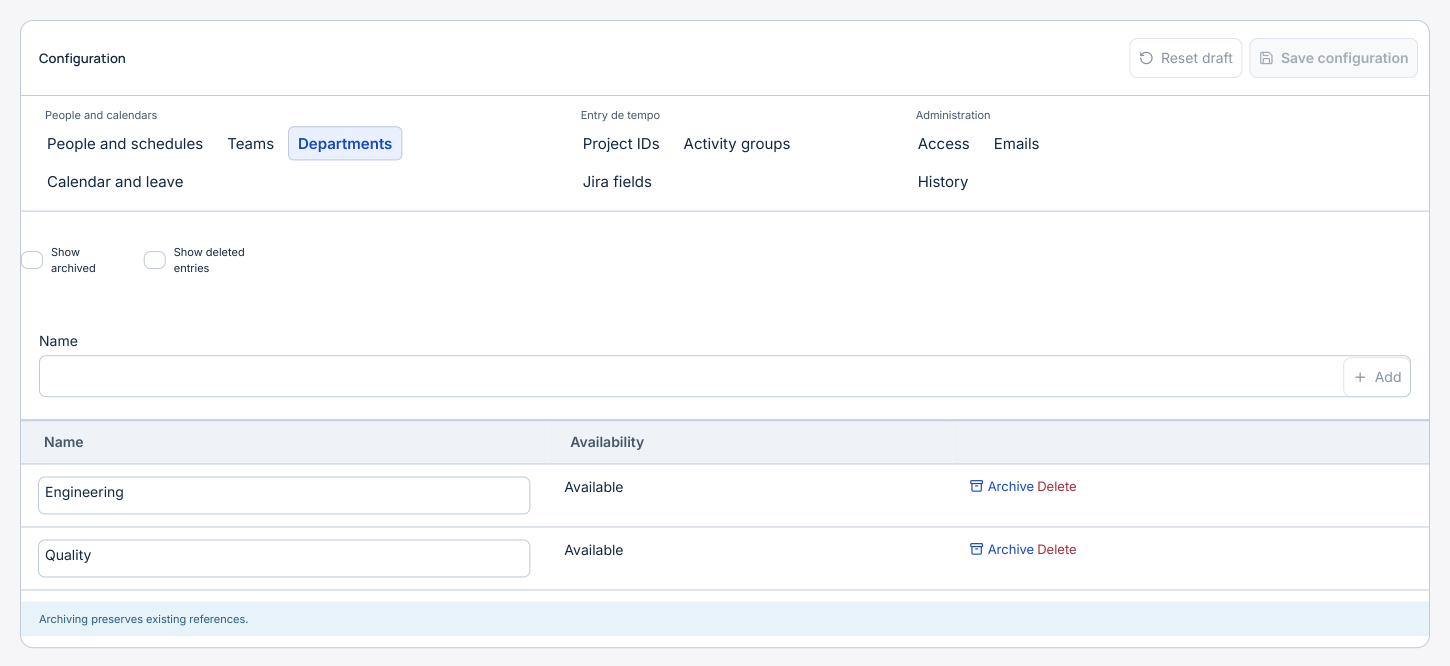
- In People and schedules, find the Jira account and choose Set up profile. Enter the team, department and schedule you know. You can return later to complete the profile. Save the configuration.
- Under Project IDs, search for the code before choosing Add Project ID. For example, create 90001 and link the DEMO space. On its project profile, choose a general-time issue in that space, such as DEMO-10. A project without a dedicated space can also use a selected destination issue.
- Apply the destination and select Save configuration. Using a test account with permission on both issues, log 15 minutes on DEMO-20 itself. Then log another 15 minutes against Project ID 90001 in My Timesheet.
- Check for 15 minutes on DEMO-20 and 15 minutes on DEMO-10. Hours by project should show a total of 30 minutes for 90001. To test internal work, configure the Miscellaneous activities and destination separately.