User
Log work on an issue or project
Enter time already worked on a Jira issue, a Project ID or an internal activity.
Before you start
Your Jira account needs access to the destination work item and permission to log work on it.
0:22 · English narration with English and Portuguese captions.Download English captions
Application demonstration using fictional data.
Read the English transcript
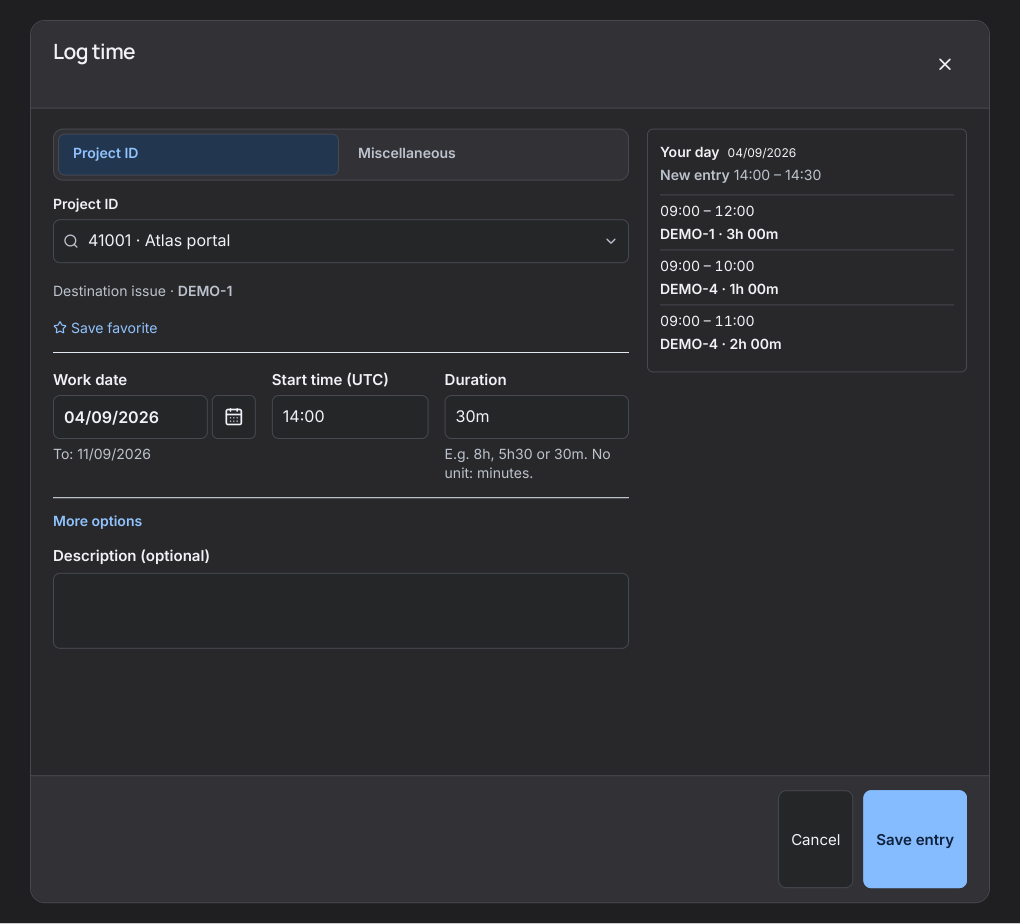
Select Log time. In a Jira issue, the entry uses that issue as its destination. Choose the Project ID for project work.
For internal work, choose Miscellaneous and pick an activity. Set the work date, start time and duration. Use the day agenda to review other entries.
Select Save entry. Check the confirmation, then open the week to review the entry.
Step by step
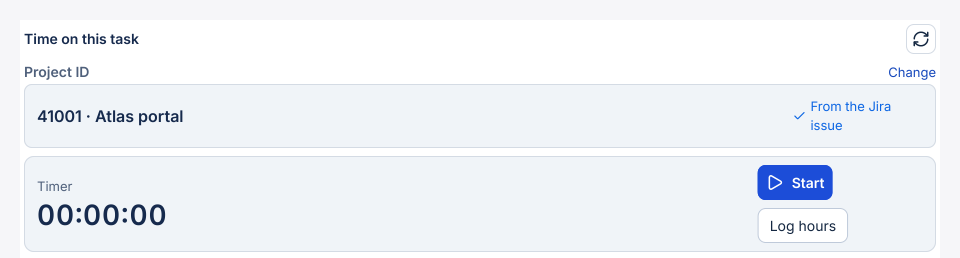
- For work on an issue or subtask, open ScopeTime on that item. Check the Project ID suggested from its space or Jira field. If the project is missing or sources disagree, select the right code.
- Select Log hours. The entry stays on the issue or subtask you opened. For project work, the issue identifies the work and you only need the Project ID.
- To log directly against a project, open My Timesheet → Log time, choose Project ID and search by code or name. Check the destination issue configured for general project time.
- For an internal meeting or training, choose Miscellaneous and select the activity. The organisation sets the Jira issue that receives these entries.
- Enter the duration, date and start time in the displayed time zone. Use More options to add an optional description. Save and check the issue and duration in My Timesheet → Worklogs.