ScopeTime / Help Center
How to use ScopeTime
Log time on a Jira issue, review your team’s hours, or set up your organisation.
Log my work
Choose a Jira issue, a Project ID or an internal activity.
Check my team’s month
Inspect a day and compare work, vacation and hours missing.
Set up the organisation
Prepare people, schedules and destinations for the first entries.
Guides by task
22 guides found
No guide matches your search. Try another word or select All.
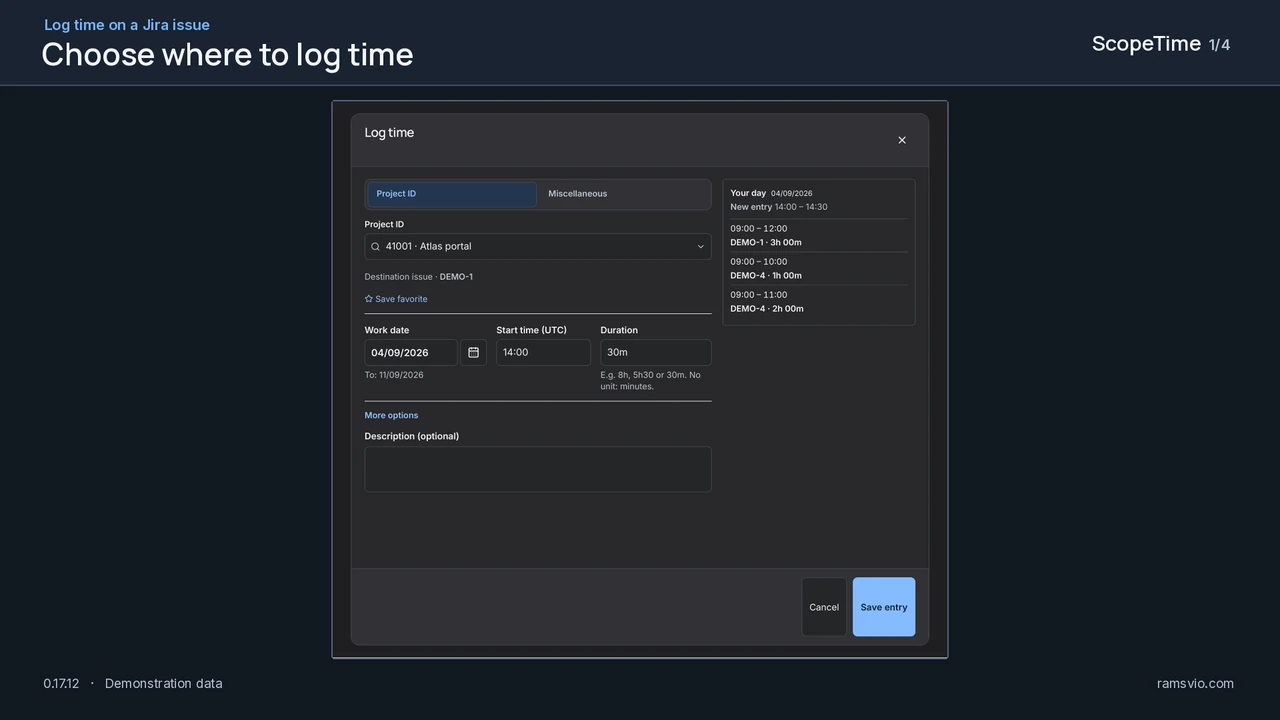
Log work on an issue or project
Enter time already worked on a Jira issue, a Project ID or an internal activity.
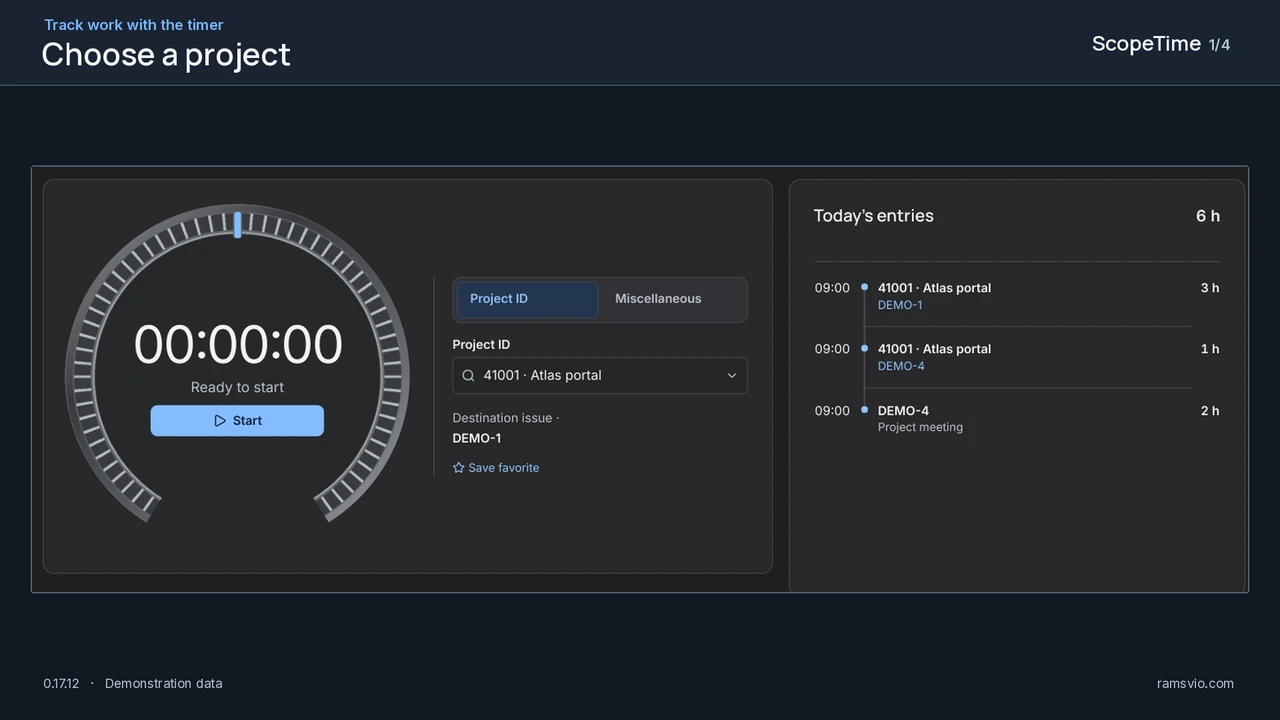
Use the timer
Start a timer, save the work to Jira and check what you have logged today.
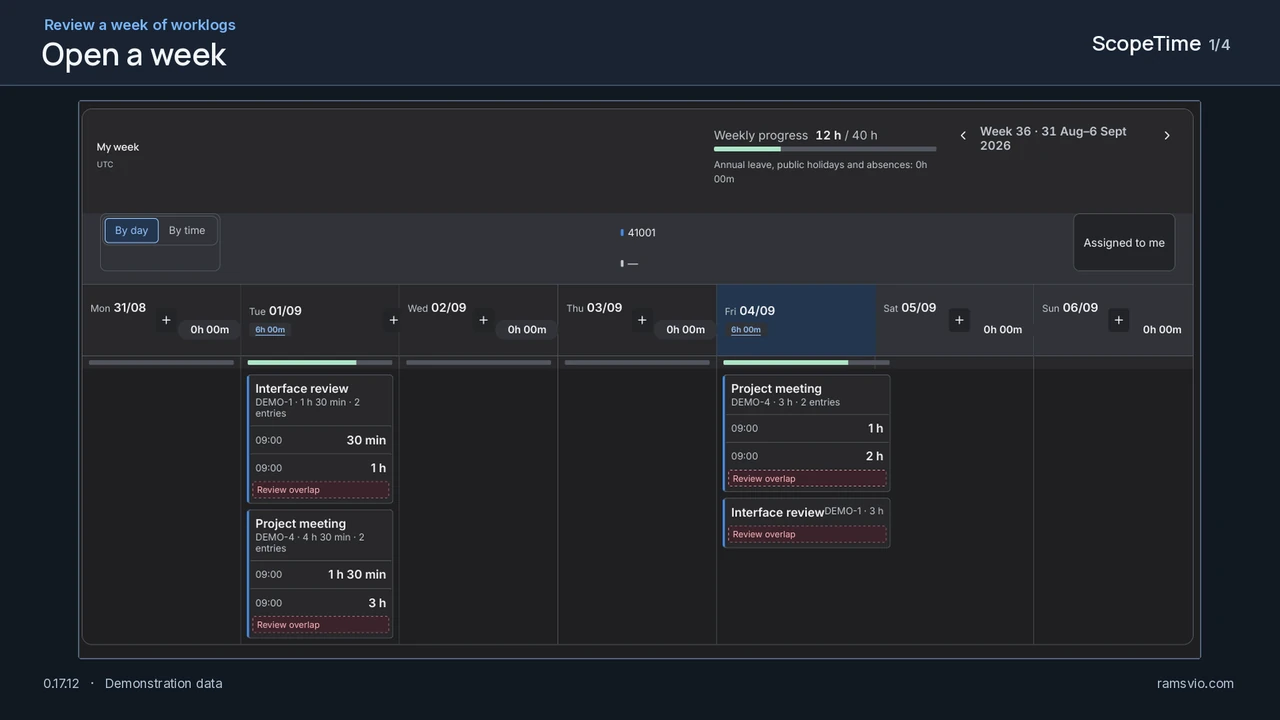
Review your week by day or time
Switch between a daily list and a time-based agenda. Check the accounted hours for the week on screen.
Review, correct or duplicate worklogs
Check your hours, complete the classification and investigate entries that cover the same time.
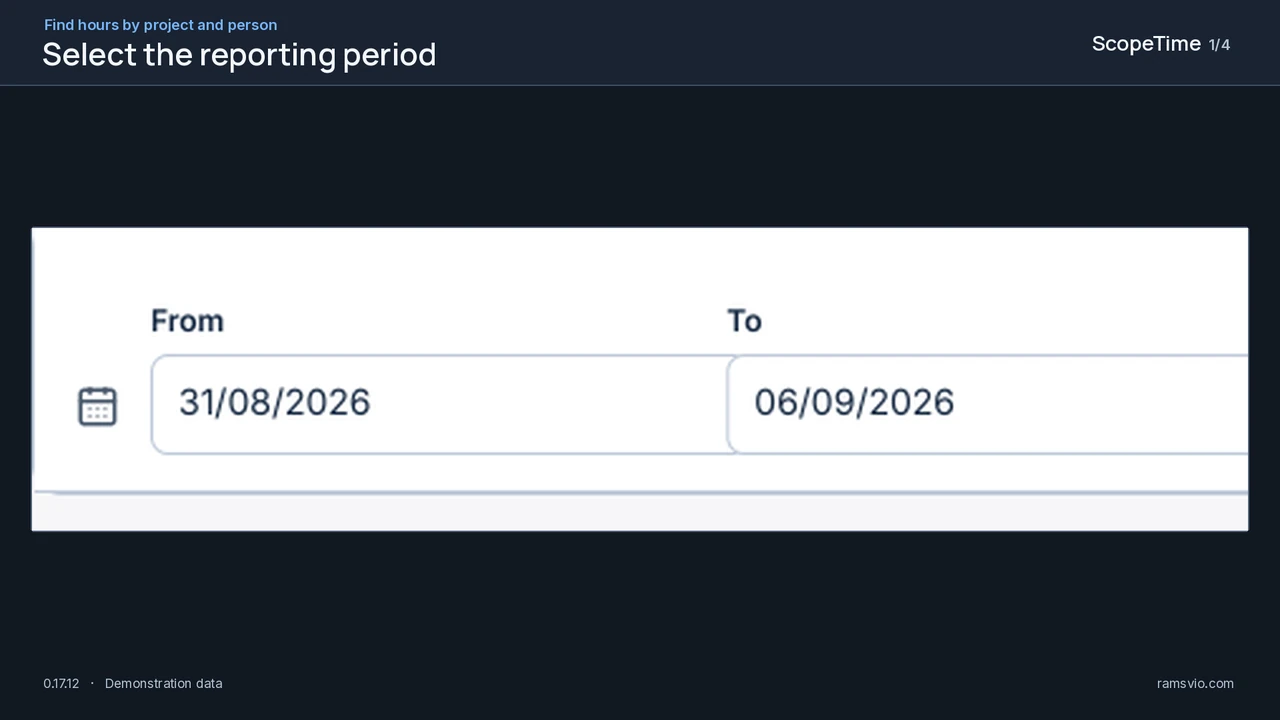
Choose a report
Find each project total, see who contributed, and review each person’s work and leave by day.
Review a project and each person’s contribution
Compare time logged against a Project ID with its plan and identify the contributors.
Review a person’s hours and leave
Separate work, vacation, sick leave, other absences and holidays, then check the accounted total.
Read the monthly team timesheet
Check schedule coverage by person and day, including work, vacation, sick leave, other absences and public holidays.
Compare logged hours with capacity
Check how logged working hours compare with the capacity available over the selected period.
Plan team capacity
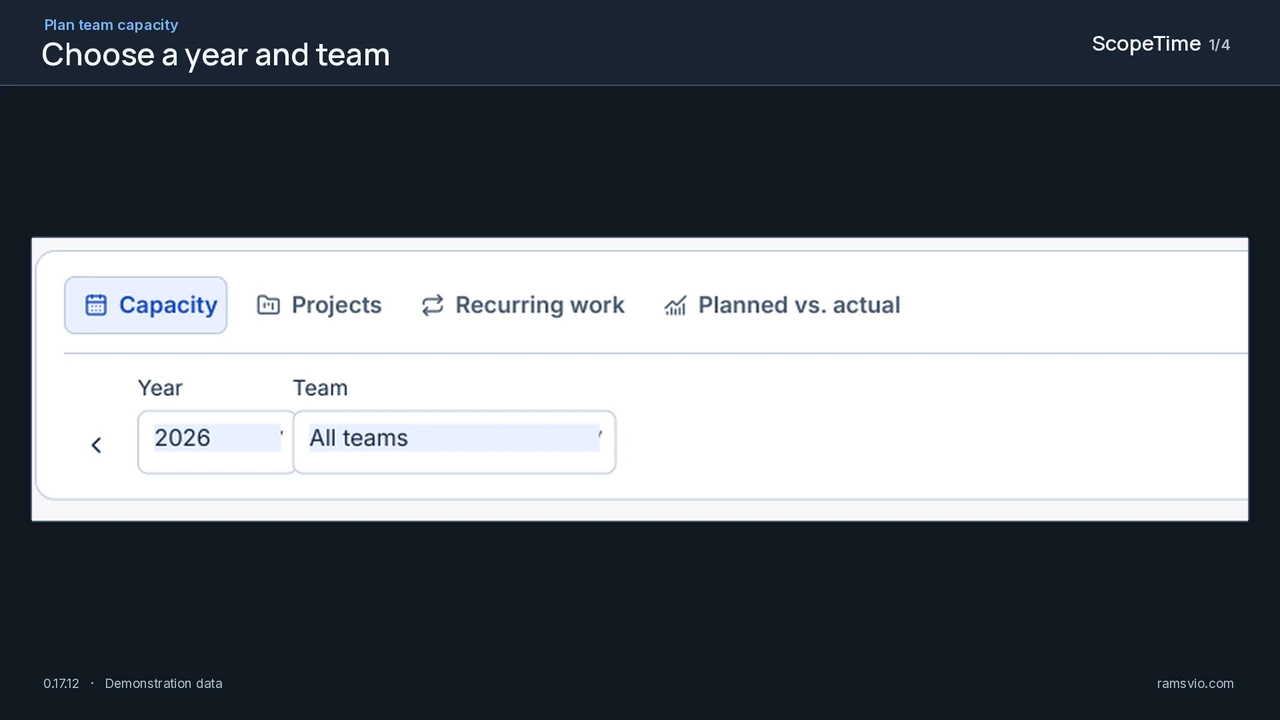
Allocate hours by person and project, spot overloads and compare the plan with Jira worklogs.
Complete a Jira user’s profile
A person can appear in People before they have a ScopeTime profile or log their first hour.
Set schedules, vacation, sick leave and holidays
Define each person’s schedule and use their leave to calculate expected work and accounted hours.
Set up the first team and project
Prepare a participant, a Project ID and two test issues to confirm where Jira saves the work.
Choose the issue that receives the time
Set a destination for general project hours and another for internal work.
Set up Miscellaneous activities
Make internal activities such as training and meetings available for work without a Project ID.
Use Jira fields to identify a project
Read project codes already present on a work item and confirm the Project ID before saving.
Manage access and permissions
Check who can use ScopeTime, see a team and manage configuration.
Set up reminders and email summaries
Choose a Jira issue notification or a personal Jira Automation rule, review the hours and verify delivery.
Troubleshoot and get support
Identify the screen, date range and operation status before trying again.
Manual and frequently asked questions
Look up calculation rules, worklog destinations and answers to common questions.
Download guides and examples
Download the Portuguese guides as PDF or editable Word files, or open a sample project report in English.
What’s new in ScopeTime 0.17.12
The People directory now includes Jira colleagues without a ScopeTime profile. This version also brings together the latest timer, calendar, report and reminder improvements.
Video tutorials
English narration with English and Portuguese captions.