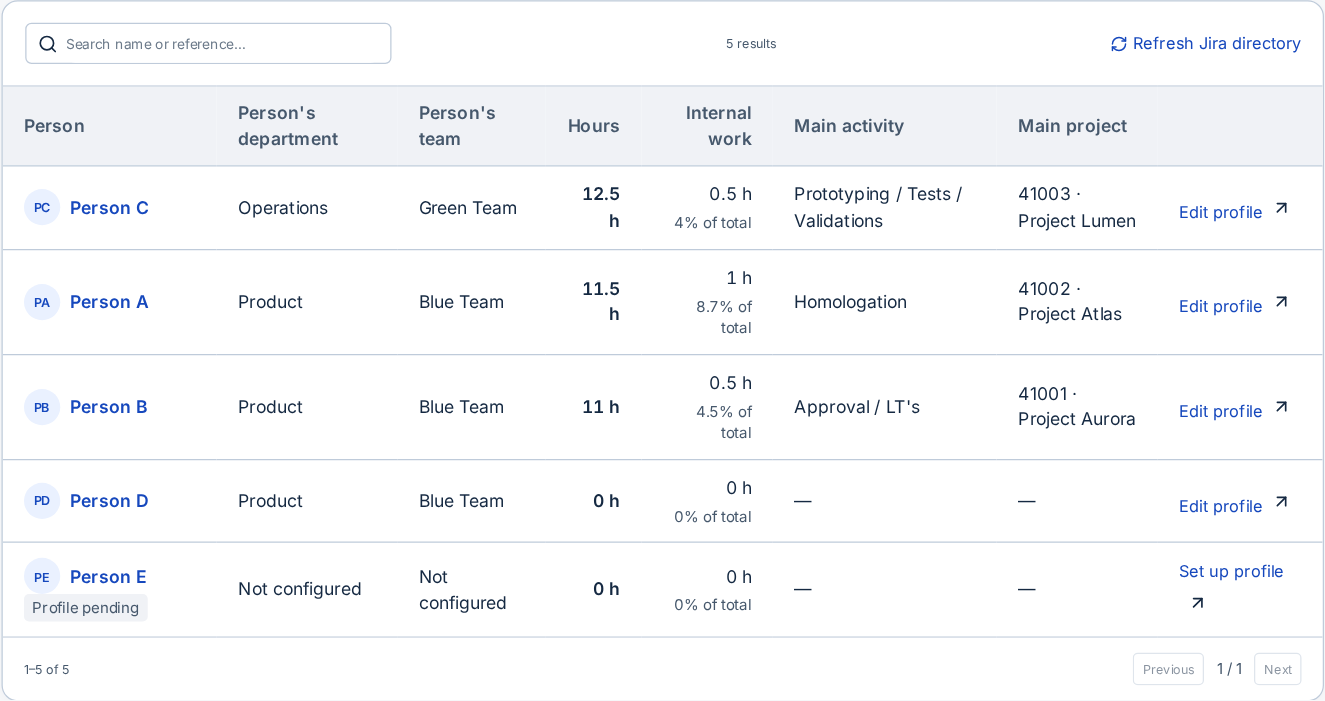
People
Find a person, review their recorded time and see their team and department. Open their configuration profile to change their schedule.
Where to go Analysis → People
How to do it
- Apply the dates and search by name. Department, team and project filters narrow the list.
- Select the name for a breakdown. Person analysis shows the daily calendar when your account can access that person.
- To set up someone found in the Jira directory, select Set up profile, fill in their Organization details and save the configuration.
Example
Ana is marked Profile pending. Open Set up profile to assign her a team and schedule, then return to People to view her work.
Fields and options
- Search name or reference…
- Search the list on screen. Someone found in Jira can appear as Profile pending until a ScopeTime profile is created.
- Refresh Jira directory
- Refresh the people visible in the Jira directory. If Jira refuses, check the Browse users and groups permission.
- Person's department
- Shows the person’s department. An unconfigured value means the association still needs to be set.
- Person's team
- Shows the person’s team. Set up profile or Edit profile opens Organization when you have access.
- Hours
- Totals visible entries in the period. A dash means a confirmed total is unavailable.
- Internal work
- Hours recorded as internal activity and their share of the person’s logged time.
- Main activity
- Identifies the activity with the most time among the displayed entries.
- Main project
- Shows the project with the most hours among the displayed entries.
No matching field.
How to check
Search for the person again. Check the displayed team and query dates before comparing their hours with someone else’s.