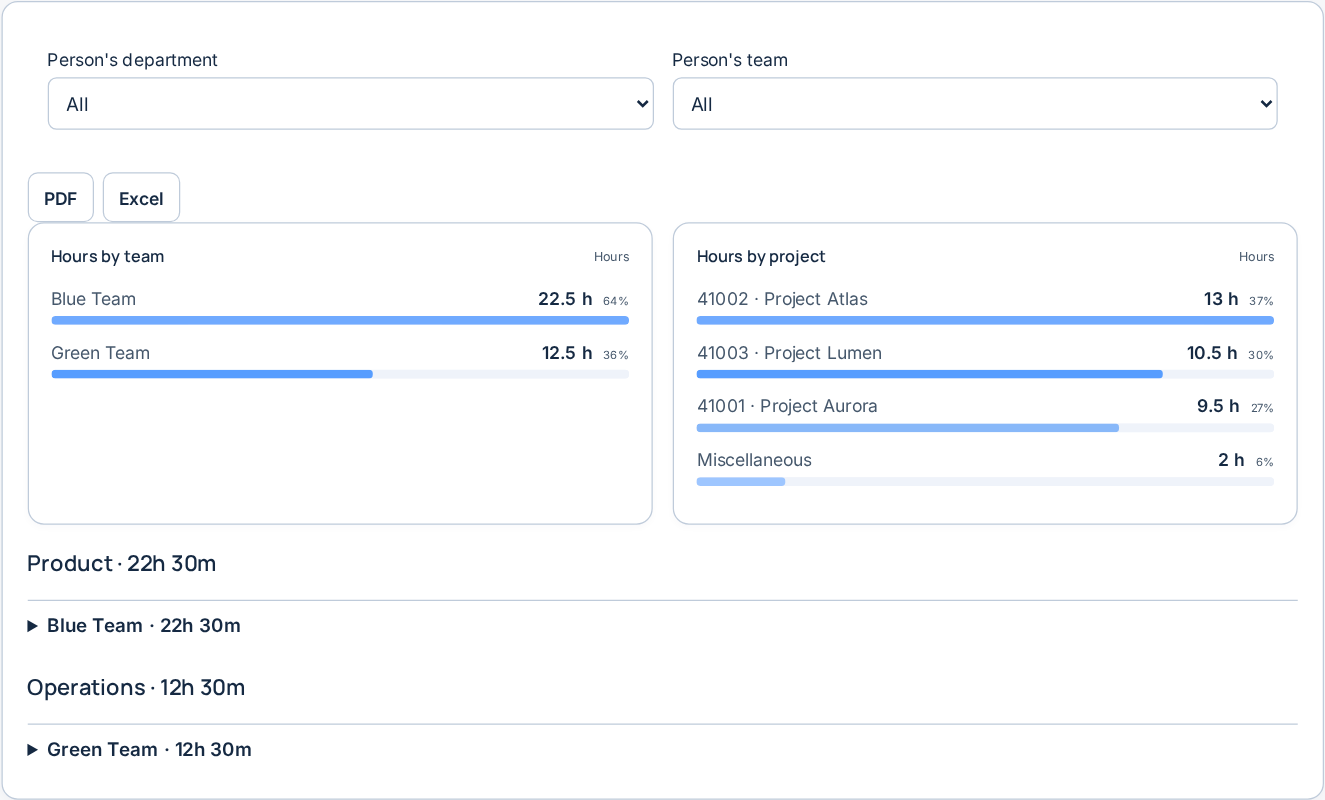
Hours by department and team
See which projects took each team’s logged hours. To see how many hours were available, open Capacity in the report catalogue.
Where to go Analysis → Reports → Hours by department and team → View
How to do it
- Apply the period and select a department. To review one team, select it in the second filter.
- Expand the team under its department. Read hours for each project and use PDF or Excel in this view for the filtered data.
Example
To present the Engineering department’s week, select it and expand the Testing team. A 16 h row for DEMO-01 means that the team logged 16 h against that project.
Fields and options
- Person's department
- Select the department of the people who logged the time. Changing this field resets the team.
- Person's team
- Choose a team from the selected department.
- Hours by team
- Compares how logged time is distributed among the teams included in the query.
- Hours by project
- Shows the split across projects. Expand a team to read its hours on each project.
No matching field.
How to check
Use the same period and team when comparing this table with activity reports or project totals.