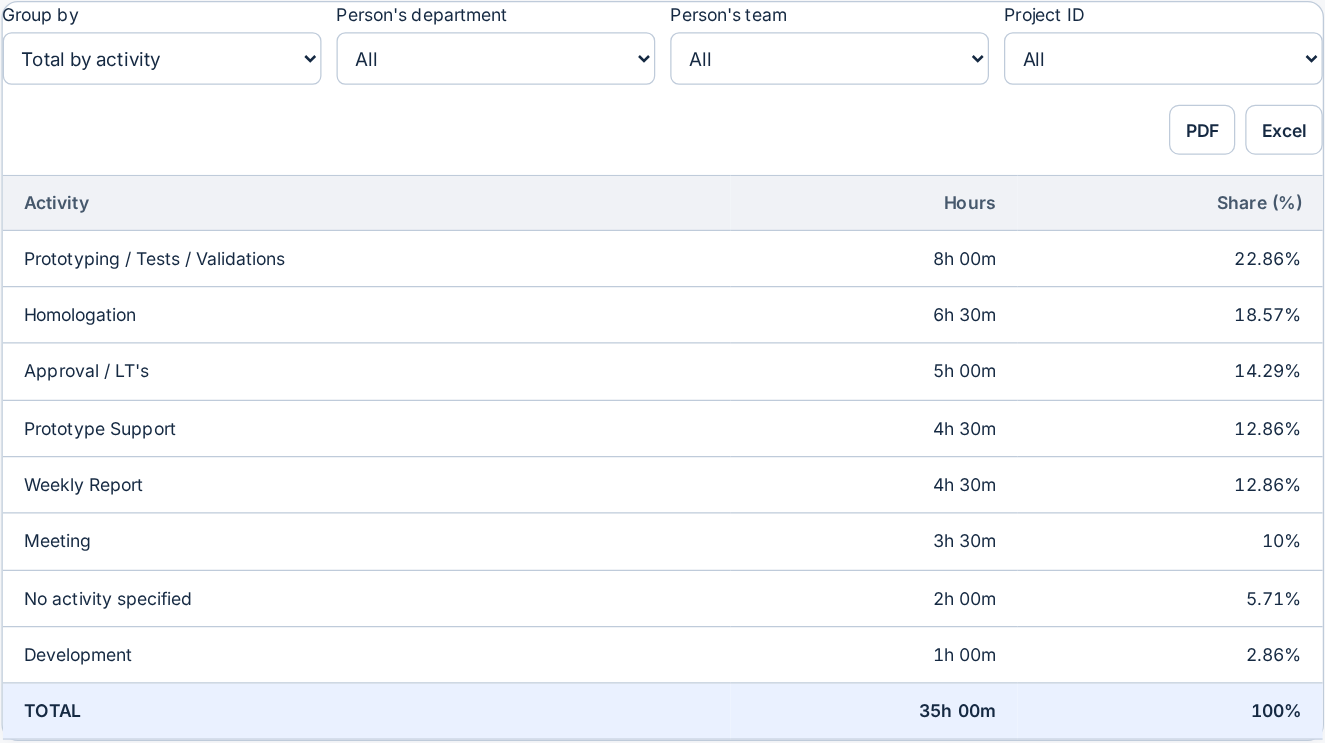
Hours by activity
See how many hours each activity took and its share of a project, team or department.
Where to go Analysis → Reports → Hours by activity → View
How to do it
- Choose the period. Under Group by select Total by activity, Team, Department or Project.
- Apply the filters you need. Read each group’s subtotal and download PDF or Excel from this view to retain the selection.
Example
With 12 h of testing and 4 h of meetings on DEMO-01, the project subtotal is 16 h. Testing accounts for 75% of that project’s time.
Fields and options
- Group by
- Sets how activities are grouped. Total by activity shows one list.
- Person's department
- Limits hours to the contributor’s department. Changing the department clears the team selection.
- Person's team
- Shows time recorded by people in the selected team.
- Project ID
- Select the project to analyse. Miscellaneous groups internal activities.
- No activity specified
- Hours on a classified project entry whose optional activity was left blank.
- Unclassified
- The entry’s classification is incomplete. Its hours are still included in the total.
- Share of group (%)
- Percentage of group hours assigned to the activity. Each subtotal covers all activities within that group.
No matching field.
How to check
Compare the total on screen and in the file using the same filters and period.