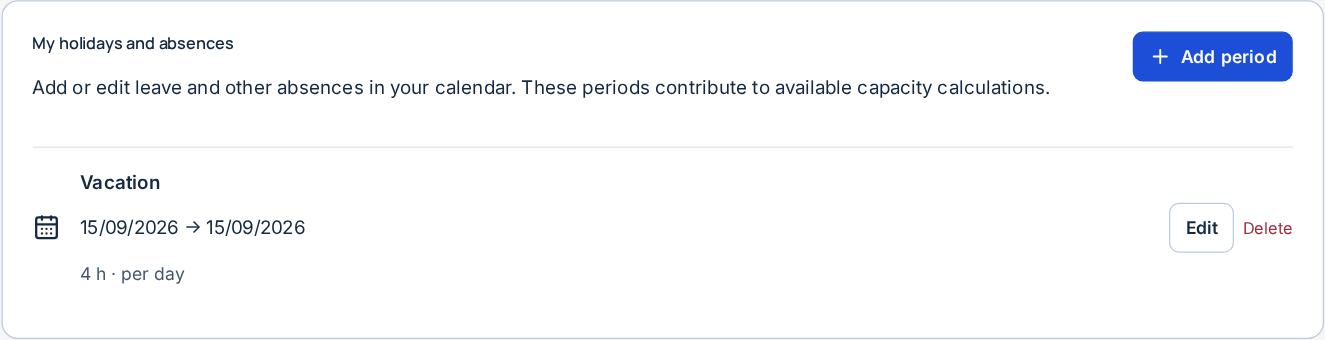
Holidays and absences
Enter leave or absences for your own account so that the calendar and capacity reflect your availability.
Where to go Work → My Timesheet → Holidays and absences
How to do it
- Open Add period. If the button is unavailable and the app asks for a profile, contact the person responsible for People and schedules.
- Select the type, first day and last day. For partial absences, clear Full day and specify the hours per day.
- Save the period and check it in the list. You can edit it later or confirm its removal.
Example
For two hours away on Tuesday, choose Other absence, enter Tuesday in both date fields, clear Full day and enter 2.
Fields and options
- Type
- Choose Vacation, Sick leave or Other absence according to the reason. The period is attached to your account.
- From
- First day included. For a one-day absence, enter the same date in From and To.
- To
- Last day included. It must be on or after the start date.
- Full day
- Leave selected to calculate each day from that person’s schedule. A rest day with no scheduled hours adds no absence hours to deduct.
- Absence hours per day
- Appears when Full day is cleared. Enter the daily duration for the period, for example 2 h for two hours of absence each day.
- Save period
- Saves the absence to the calendar. Public holidays take precedence when they coincide with an absence on the same day. Calendar hours do not create a Jira worklog.
- Atualizar dados
- If saving a period is unconfirmed, check its status before trying again.
No matching field.
How to check
Check the period in Holidays and absences and open the corresponding Week to see the effect on the calendar.