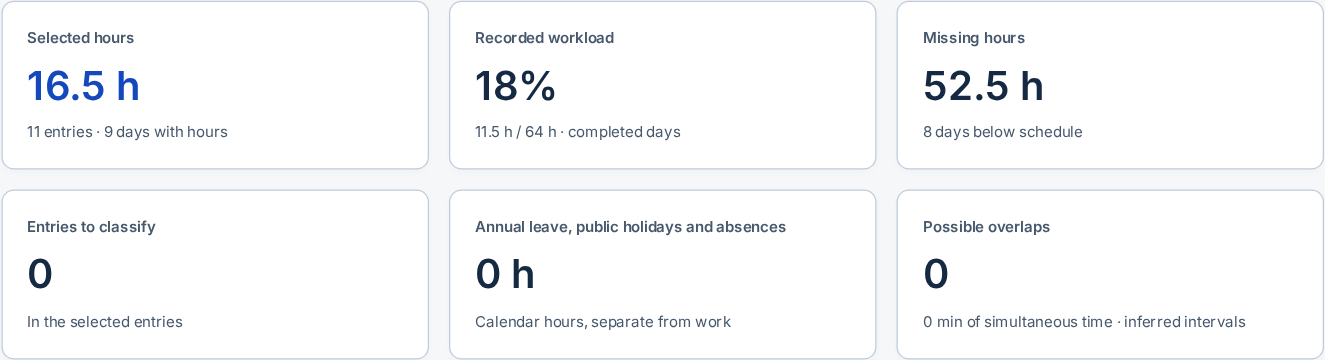
Personal summary
Compare time already logged with your schedule and absences. Open a day that needs attention to see what is missing.
Where to go Work → My Timesheet → Personal summary
How to do it
- Choose dates or a preset period and select Apply period.
- In My calendar, find the date and select View entries or Log time. The project and activity filters narrow the breakdown in the summary.
- Use Entries to classify to complete a classification and Possible overlaps to inspect coinciding times.
Example
For an eight-hour day with six hours of work and two hours of recorded absence, check that eight hours are counted. To review project work alone, filter the chart.
Fields and options
Choose dates and filters
- From
- First day to include. A preset such as This week fills in the dates.
- To
- Last day to include. Apply the period to recalculate the figures.
- Project
- Choose a Project ID to filter the time breakdown. The daily review calendar considers your available entries across projects.
- Activity type
- Choose the activity to analyse. If the view is empty, return to All and check the period.
- Only incomplete days
- Shows past days for which the schedule and data establish a shortfall. An unknown schedule or incomplete data can prevent the calculation.
Read the results
- Daily hours and expected schedule
- The chart subtracts public holidays and absences from the expected schedule. A confirmed rest day with no hours is hidden, including on weekends. A day with a shift, an entry, counted absence or an unconfirmed schedule may appear.
- Counted
- Combines work with leave, public holidays or absences counted for that day. Compare the result with the scheduled hours.
- Entries to classify
- Select Classify on an entry. Choose the project for project work or the activity for Miscellaneous.
- Possible overlaps
- Compare the start and duration of each pair in your own entries. An overlap is an interval to review, especially for manually entered time.
- Person analysis
- Opens the daily detail for your account and applied period, including work and calendar information.
Prepare the report
- Report for this view
- Opens the personal summary export with the current period and filters.
- Show entry details
- Select to include individual entries in the export. Leave clear to share just the summary totals and charts.
- File format
- Choose PDF or Excel. Advanced options also makes CSV and HTML available.
- Pesquisar campo adicional
- In Advanced options, after enabling entry details, search by Jira field name or ID and select it for the export.
No matching field.
How to check
Check the dates and time zone in the header. If coverage is partial, check which data is available before using a shortfall figure.