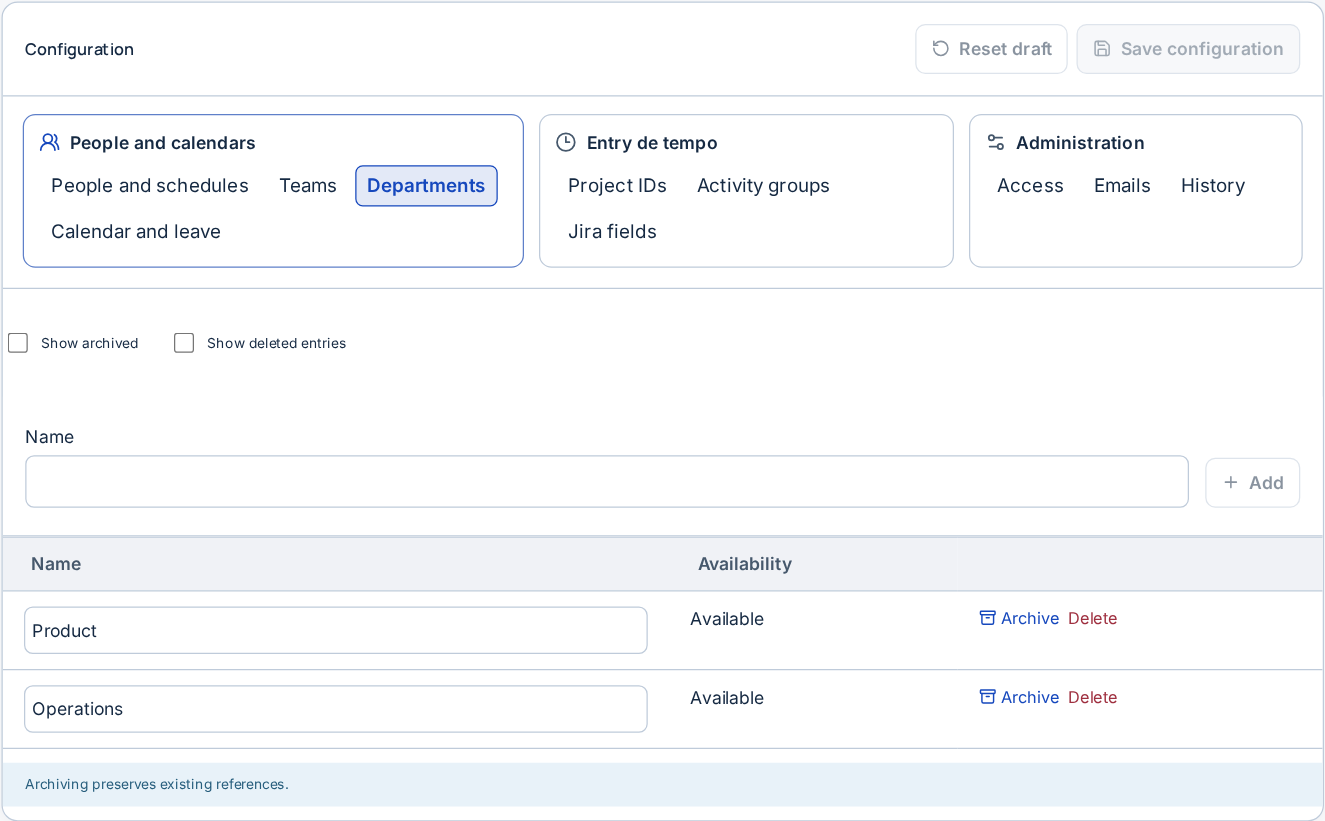
Departments
Create the organizational units that group teams and people. Use Organization to maintain the catalogue. To see how hours are distributed across projects, open Analysis → Reports and select View on the Hours by department and team card.
Where to go Organization → People and calendars → Departments
How to do it
- As an organization manager or Jira administrator, open Departments and check whether the unit already exists. Include archived entries if needed.
- Enter a Name and select Add. The department appears in the draft table. To correct the text, edit the name in that row.
- Select Save configuration. Under Teams, choose this department when creating a team. Under People and schedules, assign each person to the relevant department and team.
Example
Create Engineering once and assign Testing and Development to it under Teams. When viewing Engineering, you can open teams with logged time in the chosen period.
Fields and options
- Name
- Required, up to 100 characters. Use the name people recognize in filters, such as Engineering. Each department needs a distinct name.
- Availability
- Shows whether the entry is available, archived or deleted. Choose Archive to retire it while preserving its references.
- Show archived
- Include archived departments. Choose Reactivate in the relevant row and save to use that department again.
- Show deleted entries
- Include deleted entries. Restore brings the department back as archived. Select Show archived to see it and choose Reactivate if needed.
- Delete
- Use for an entry created in error. The app may block deletion if teams, people or other records depend on it. Keep the department archived in that case.
No matching field.
How to check
When creating a team, check that the new department appears in the selector. To check logged hours, open Analysis → Reports, choose a period with worklogs and select View on the Hours by department and team card.