History
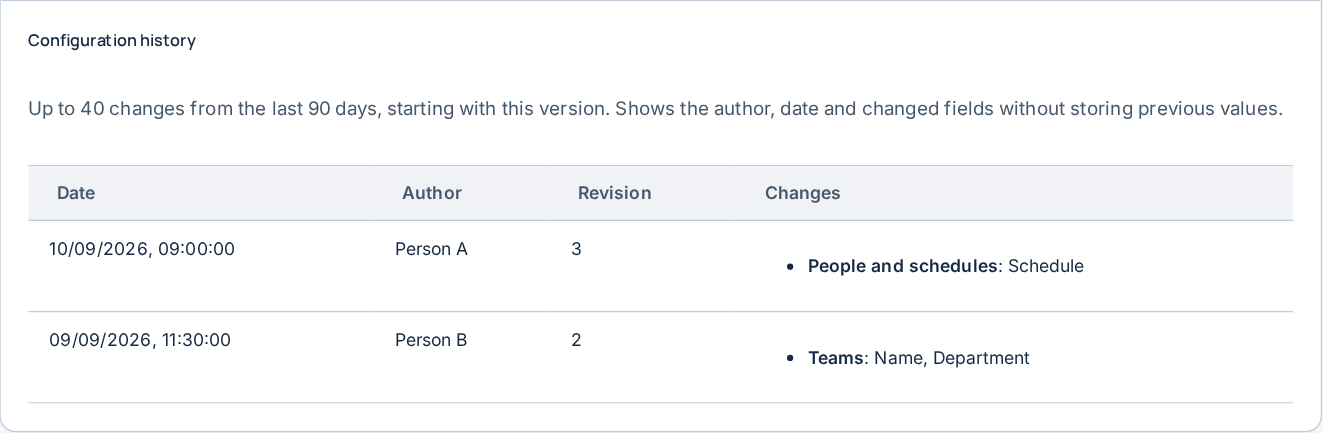
Check when configuration changed, who saved it and which fields changed. Organization managers and Jira administrators can consult this read-only screen.
Where to go Organization → Administration → History
How to do it
- Open Organization → Administration → History and find the change by date or revision.
- Read Changes to identify the area and fields involved. To view or correct the current value, open that area’s tab.
Example
After saving a new schedule, People and schedules and Schedule may appear on the same row. Open the person’s profile to see the hours currently in effect.
Fields and options
- Date
- Shows when the change was saved in the organization’s time zone.
- Author
- Identifies the person who saved the change. The name may be unavailable if that identity was removed for privacy.
- Revision
- Configuration revision number after saving. Two areas changed in a single Save configuration operation can share the same revision.
- Changes
- Shows affected areas, field names and, where applicable, the number of entries involved. The history covers up to 40 changes from the last 90 days and records what changed, without storing previous values.
No matching field.
How to check
Match the author and revision to the save you are looking for. If the history is empty, no changes are available for the period shown.